Places and the map
Finding a place
Start typing in the search field and suggestions appear as you go, nearest first. Nothing is picked until you tap a result, so you can keep typing without the map jumping around.
You can also tap anywhere on the map. Places show by name and address rather than coordinates, so you can tell at a glance whether you've picked the coffee shop or the parking lot behind it.
Look Around
Look Around opens Apple's street-level imagery of the spot you've picked, or of where the phone currently appears. Open it full size to turn and look around, which is a quick way to check a spot looks the way you think it does. Where Apple has no imagery, StealthPin says so.
Bookmarks and Recents
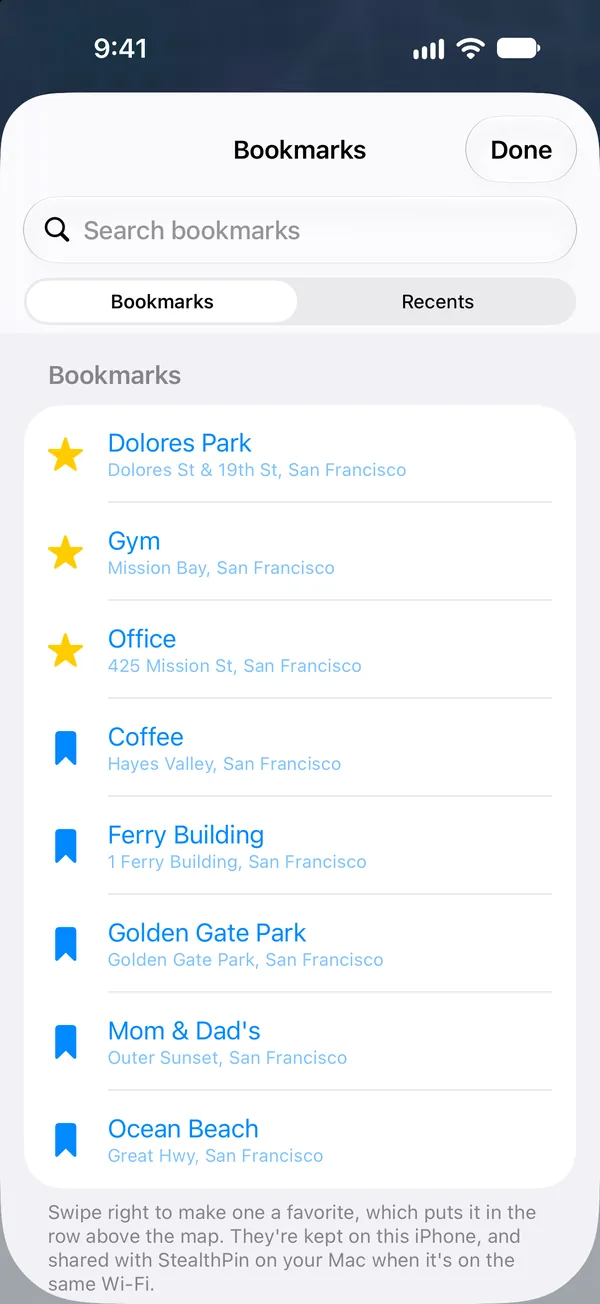
Bookmarks are places you save to come back to. Recents is the history of every place the phone appeared, when it got there and how, so you can keep your story straight.
Both live on the iPhone and work with no Mac. If you also use the Mac app, bookmarks merge both ways when the two are connected, and where they disagree the iPhone's version wins.
Settings
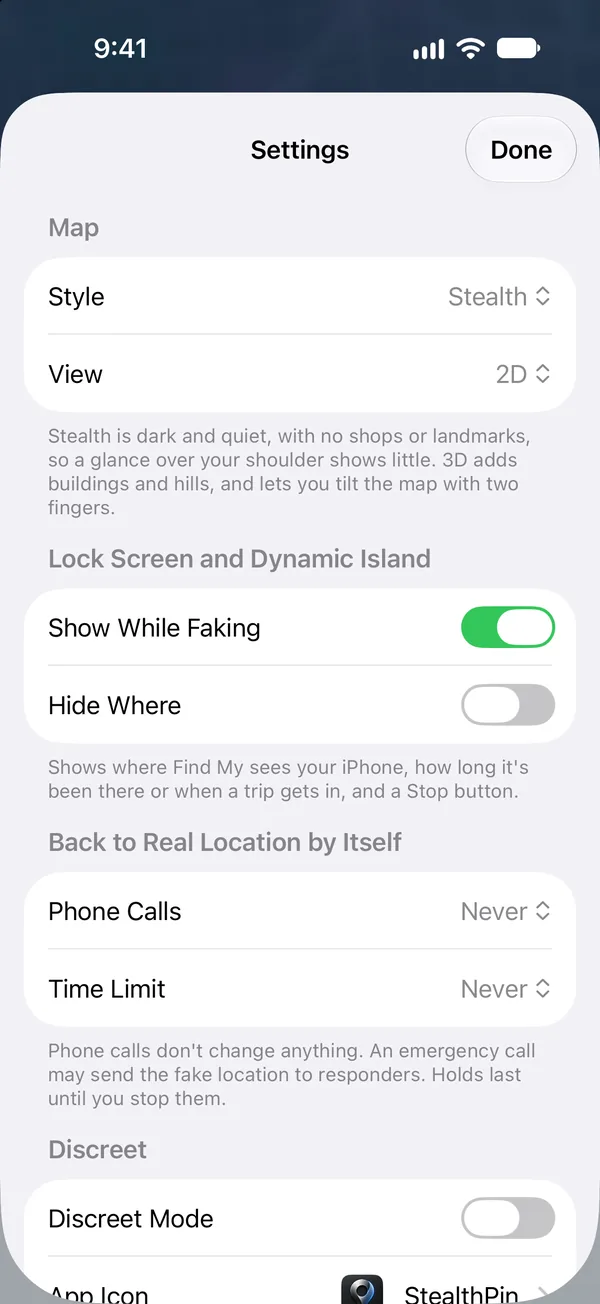
- Map style: Map, Satellite or Stealth, the same three the Mac app has.
- 2D or 3D.
- Lock Screen activity: Show While Faking puts a Live Activity on the Lock Screen while StealthPin holds. Hide Where keeps the place name off it, for when other people can see your phone.