
The Mac app
StealthPin for Mac is optional. It does three things the iPhone app can't do alone:
- Setup for iPhones on iOS 18 to 26, by sending the pairing file once.
- Planning on a big screen: routes through several stops, trips, GPX files and favorites.
- Setting the location directly while the iPhone is plugged in.
That last one comes with a catch. On iOS 17 and later, a location the Mac sets goes back to the real one once the Mac loses contact with the phone, so it only lasts while the phone stays near the Mac. To hold a location away from home, use the iPhone app.
Items marked Mac 0.2 are in the next version of the Mac app and not yet in the download. The current download is 0.1.3, for macOS 14 and later. Version 0.2 will need macOS 15.
Install
Download StealthPin for Mac, unzip it, and move StealthPin to Applications. It's signed and notarized by Apple, so it opens like any other app.
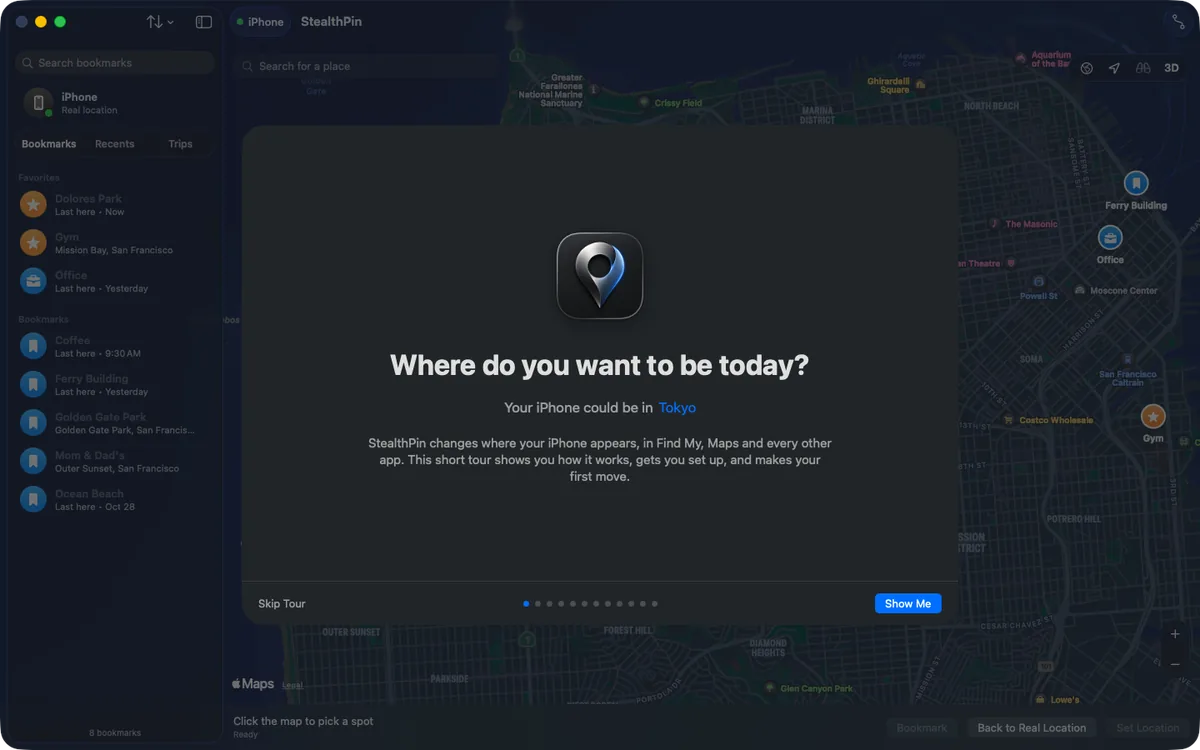
The first time it opens, a short tour checks your setup live (the iPhone connected and trusted, Developer Mode, and the tunnel) and offers a one-click fix for anything that isn't ready, including revealing the Developer Mode switch. You can bring the tour back with Help › StealthPin Tour.
Setting the location
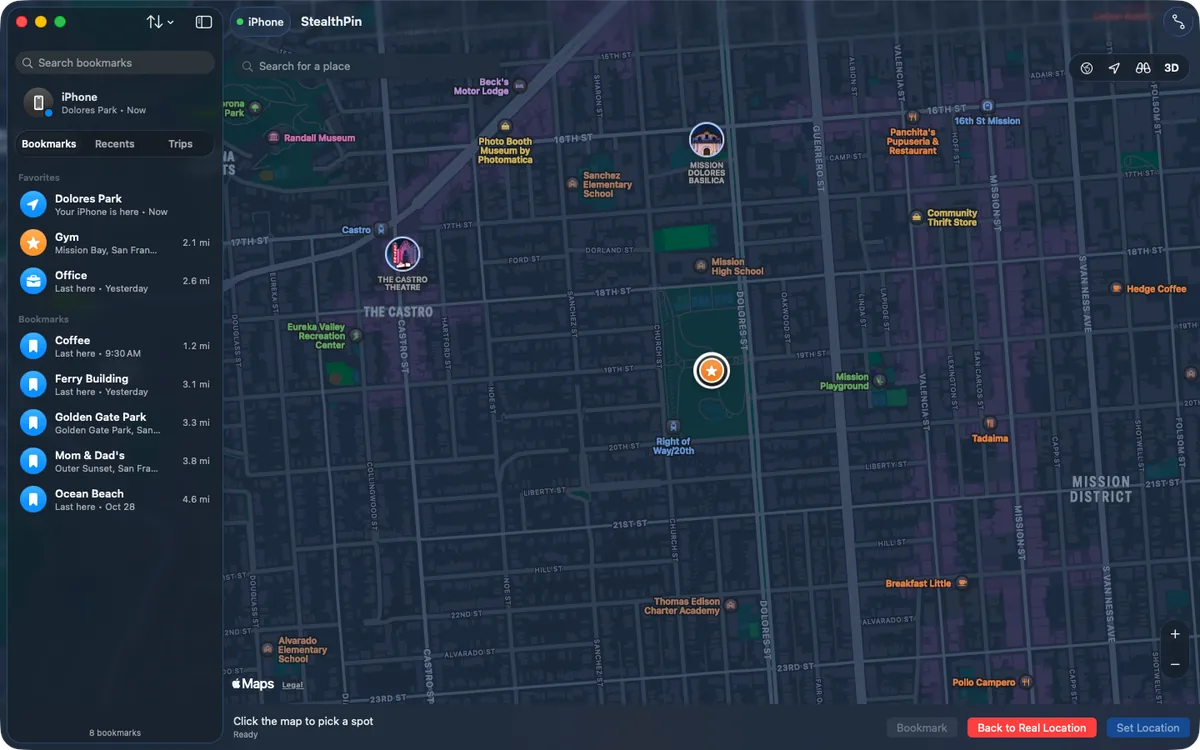
With the iPhone connected over USB, pick a spot and choose Set Location (⌘↩). The first time, the Mac mounts the phone's developer disk image, which takes a few seconds.
For iOS 17 and later the Mac needs a small tunnel helper running in the background. You approve it once in System Settings.
While it runs, the Mac keeps re-sending the location. It also remembers it across relaunches and puts it back, but after an iPhone restart it leaves the real location alone.
Back to Real Location (⇧⌘⌫) is in the window, the menu bar and the Map menu.
When the iPhone's battery runs low, the menu bar menu warns you. Mac 0.2
Realism
- GPS drift around a held spot, which you can turn off in Settings.
- Moves over 500 m ask whether to drive, walk or jump, using Apple's real travel time.
- Traffic for drives, with speeds for each kind of road, braking for turns, red lights, stop signs and stop-and-go. The route on the map is colored by traffic.
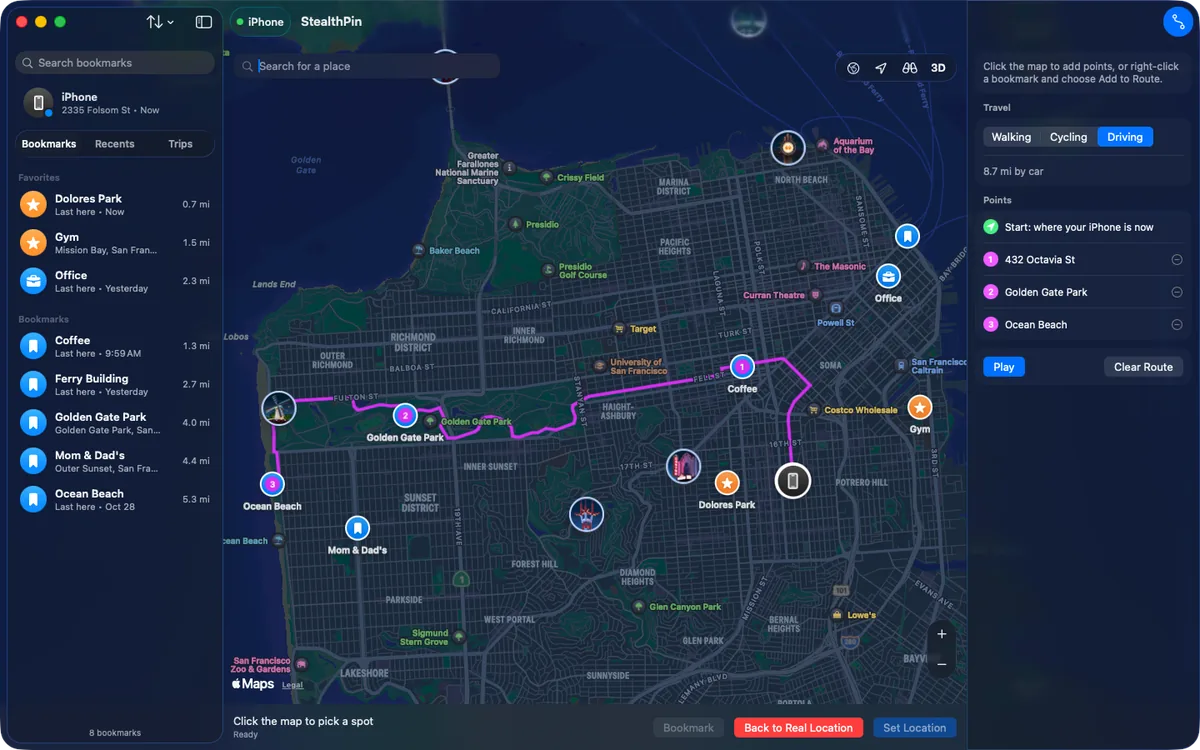
- Routes: click points on the map, pick walking, cycling or driving, and play. Each leg follows Apple Maps directions.
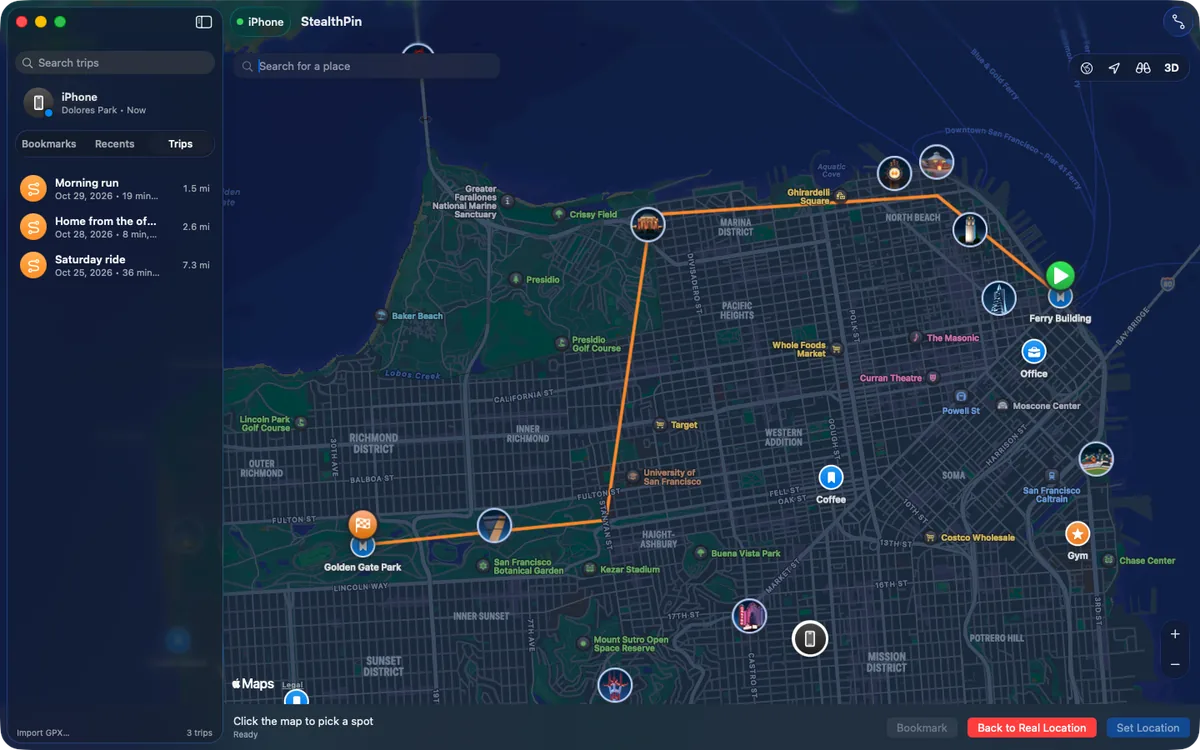
- Trips: replay trips recorded on the iPhone, import and export GPX, rename and delete.
Places
- Bookmarks with search and sort.
- Favorites, the yellow stars, on ⌘1 to ⌘9 and in the menu bar's Go To menu.
- Suggested places the phone keeps going back to.
- Recents, the history of everywhere the phone appeared and how it got there.
- Search with suggestions as you type, places by name and address, and Look Around in a card or opened in Apple Maps. Mac 0.2
- Find My look, with Find My's tabs, rows and distances, and the iPhone drawn the way Find My draws it. Mac 0.2
- Map styles including Stealth, and Show Traffic. Mac 0.2
- When nothing is faking the iPhone, the map centers on the Mac's own location, as the best guess at where the phone really is. Mac 0.2
Working with the iPhone app
The Mac and the iPhone app find each other on the same network and connect with a six-digit PIN. Once connected, bookmarks merge both ways, recorded trips upload to the Mac, and the Mac knows where the phone is holding so it stays out of the way. It shows that spot on its own map as "StealthPin on iPhone". Mac 0.2
If the Mac is the one faking the phone's location, the iPhone app says so and can ask the Mac to stop.
The connection between them isn't encrypted. Anyone on the same network who knows the PIN could move your phone, so only connect on networks you trust.
Privacy on this Mac Mac 0.2
- Lock StealthPin with Touch ID whenever it isn't the app in front. Back to Real Location still works from the menu bar while it's locked.
- Hide it from the Dock and keep only the menu bar icon.
- Turn off the history.
- Erase Everything wipes what StealthPin keeps on the Mac.
What Can Give You Away… is a checklist of setup items and limits worth knowing about: restarts, apps that detect simulated locations, your IP address, photo locations, emergency calls, and when stopping is safer than faking.
Keyboard shortcuts
| Shortcut | Does |
|---|---|
| ⌘↩ | Set Location |
| ⇧⌘⌫ | Back to Real Location |
| ⌘1 to ⌘9 | Go to a favorite |
| ⌘D | Bookmark this spot |
| ⌘R | New route |
| ⇧⌘R | Show route |
| ⌘L | Center on the iPhone |
| ⇧⌘B | All bookmarks |
| ⌘= and ⌘− | Zoom in and out |