
Getting started
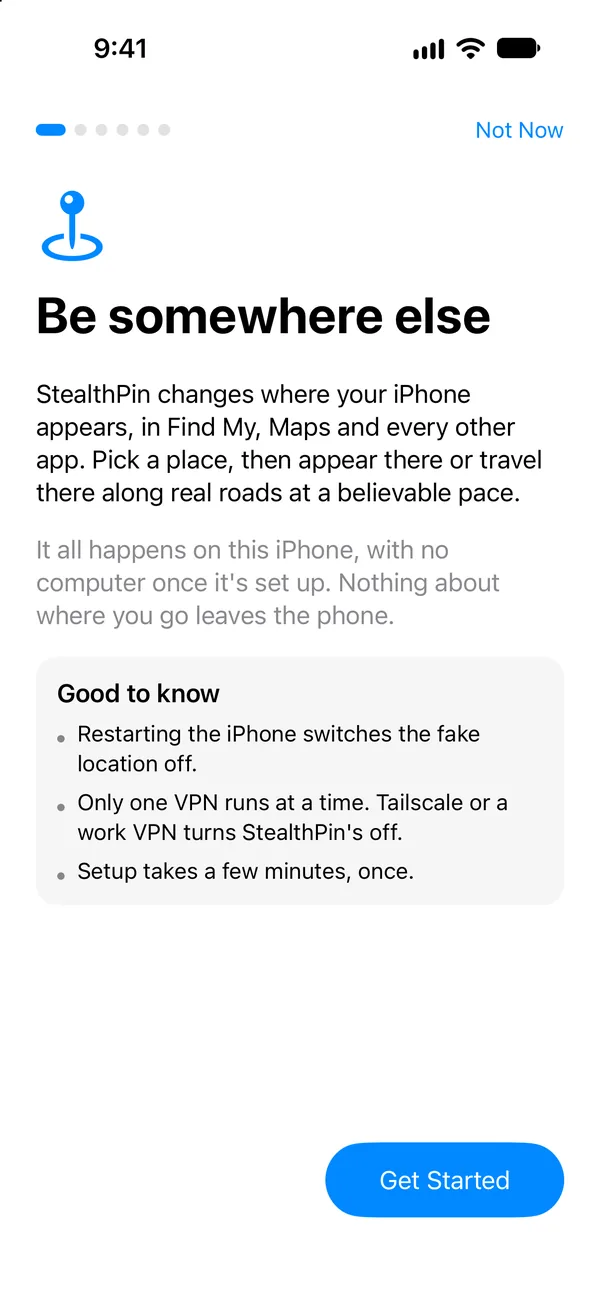
StealthPin's own setup guide walks you through all of this the first time you open it, one step at a time, and ticks each step off as it sees it done. This page is the same list, for reading ahead or for when a step won't tick.
What you need
- An iPhone on iOS 18 or later.
- About ten minutes. On iOS 27 that's all, with no computer.
- On iOS 18 to 26, a Mac running StealthPin for Mac, once. It sends the iPhone a pairing file, and after that the phone works on its own.
1. Install StealthPin
StealthPin isn't on the App Store, because Apple doesn't allow apps that use the iPhone's developer settings. There are two ways to install it.
- Sideload it with SideStore (or AltStore, or Sideloadly), using your own Apple ID. A sideloaded copy can't carry its own VPN, so it uses the free LocalDevVPN app from the App Store instead. Apps installed with a free Apple ID need refreshing every seven days, which SideStore does for you.
- Join the beta. Beta builds carry StealthPin's own VPN and don't need refreshing, but they only install on iPhones registered for the beta, so you send your iPhone's UDID first.
The install guide has both, step by step.
2. Turn on Developer Mode
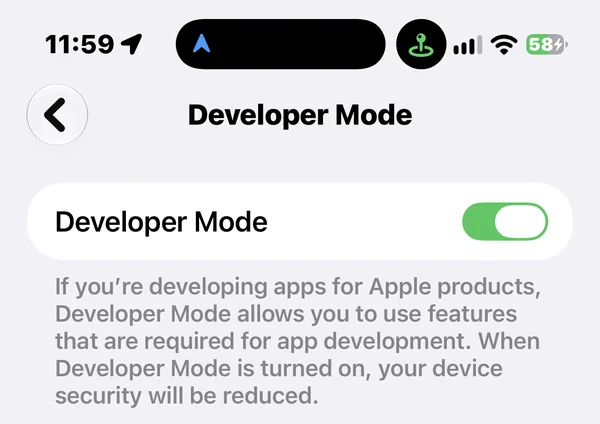
Developer Mode is an Apple setting for people who build apps. It's what lets StealthPin set the location. Nothing is erased, Face ID and your passcode keep working, and you can turn it off again whenever you like.
Once StealthPin is installed, the switch is in Settings › Privacy & Security › Developer Mode. Turn it on, let the iPhone restart, then tap Turn On when it asks after the restart. The Developer Mode guide has pictures of each screen.
3. Pair StealthPin with your iPhone
StealthPin needs a pairing record, the same kind a Mac gets when you tap Trust, so it can reach the phone's developer tools.
On iOS 27, the iPhone pairs with StealthPin by itself. StealthPin shows up in Settings › Privacy & Security › Developer Mode the way a Mac offering wireless pairing would. Pick it and type the six-digit code StealthPin shows you. This is StealthPin's own pairing, so pairing or re-pairing a Mac later doesn't break it.
On iOS 18 to 26, plug the iPhone into a Mac running StealthPin for Mac and choose Send Pairing File…. The iPhone app keeps the file in its own storage, readable only after the phone has been unlocked once since it started. Mac 0.2
4. Turn on the VPN
StealthPin's VPN never sends anything off the phone. Only a computer is meant to reach the iPhone's developer tools, so the VPN makes the phone look like that computer to itself, and every packet goes straight back in. Your browsing and other apps don't go through it.
- Beta builds have the VPN built in. StealthPin asks to add it, and you allow it once.
- Sideloaded copies use LocalDevVPN. Open it and turn it on, and leave it on while you're holding a location.
iOS only runs one VPN at a time, so turning on Tailscale, a work VPN or any other one switches StealthPin's off.
5. Allow location and notifications
StealthPin asks for location access so it can keep running in your pocket (it asks for rough updates, the same trick StikDebug uses), and for notifications so it can tell you if holding stops. Both are optional, but holding is much less reliable without them.
You're set
Open the map, pick a spot, and tap Appear Here. Holding a location covers the rest.