
StealthPin docs
StealthPin changes where your iPhone appears. You pick a spot on the map, the phone travels there along real roads or just appears, and Find My, Maps and every other app see it there until you tap Back to Real Location.
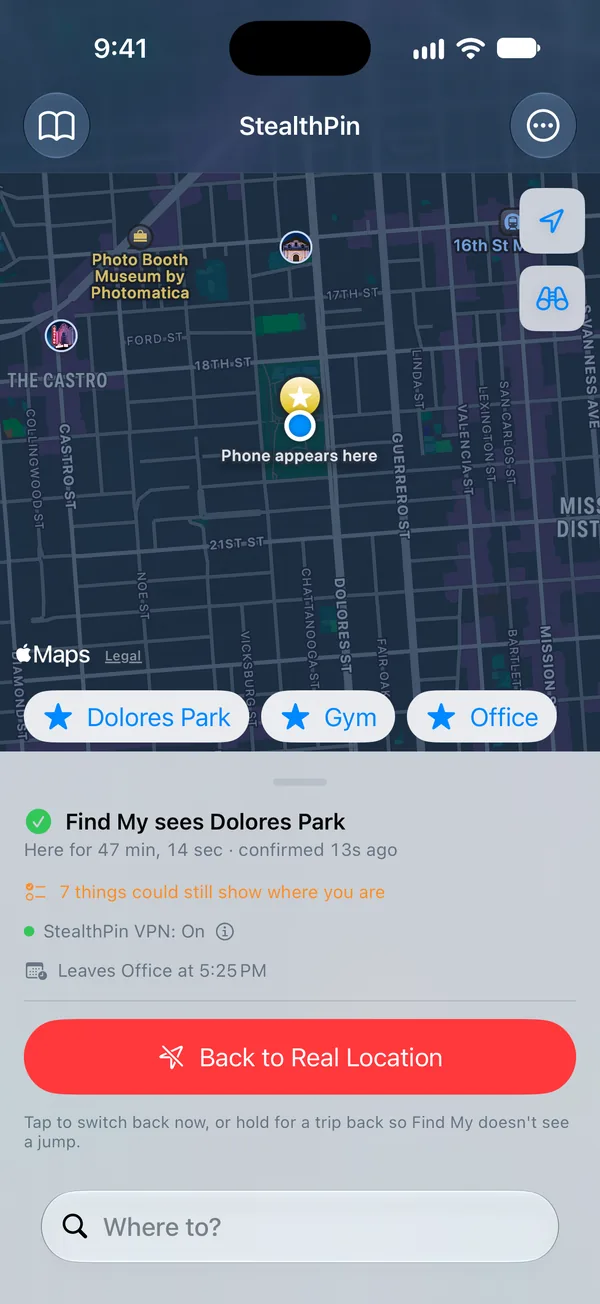
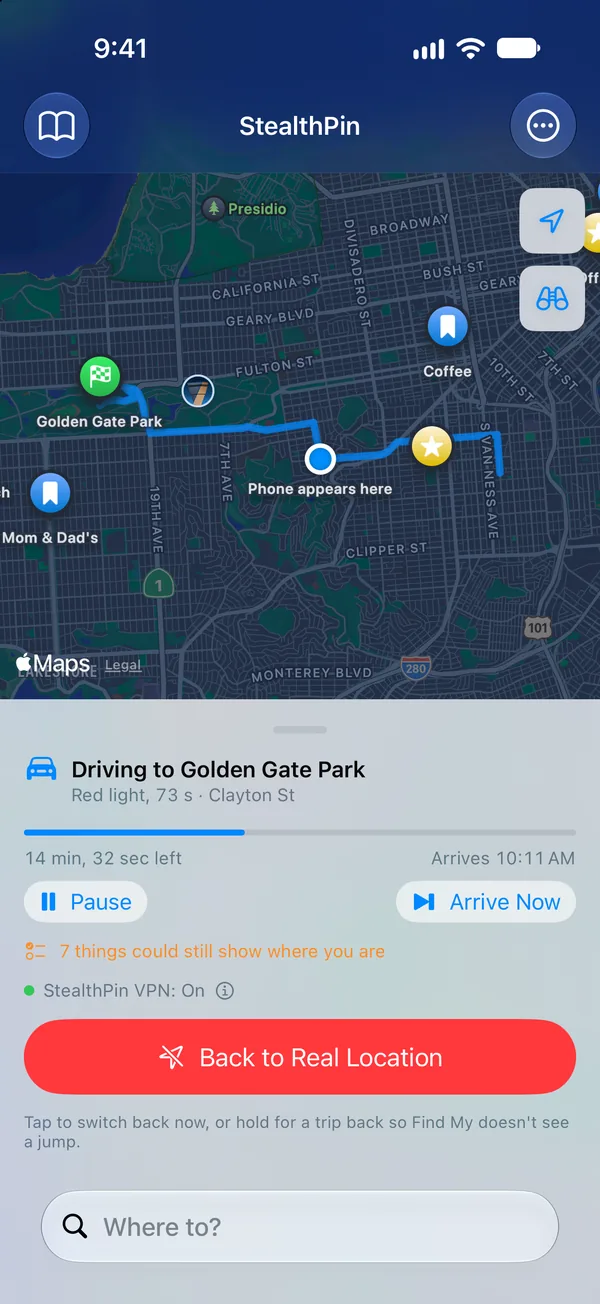
These pages cover setting it up, each part of the iPhone app, the Mac app, and what to do when something goes wrong. StealthPin is free, with no account and nothing to pay for later, and these docs are free to read and share too.
Where to start
- Getting startedWhat you need, and the three steps before the first move.
- Holding a locationAppear somewhere, travel there, and come back.
- Knowing it's holdingThe Lock Screen, the hold log, and what friends see.
- TroubleshootingWhen the real location shows, or setup won't finish.
Two apps
StealthPin for iPhone does the work. It holds the location from the phone itself, so it keeps going when you leave the house. Most people only need this one.
StealthPin for Mac is optional. It sets up iPhones on iOS 18 to 26, which can't pair themselves, and it's a bigger screen for planning routes, editing trips and keeping favorites. It can also set the location directly while the phone is plugged in. The Mac app has the details.
Something missing?
If these pages don't answer it, email hello@stealthpin.com or open an issue on the releases page. Questions that come up more than once end up here.